FIX: api-ms-win-crt-heap-l1-1-0.dll OR api-ms-win-crt-runtime-l1-1-0.dll is Missing (Solved)
The errors "api-ms-win-crt-heap-l1-1-0.dll" & "api-ms-win-crt-runtime-l1-1-0.dll" usually occur when you try to open Adobe programs or other programs on Windows 8.1 computers that do not have Visual C++ Redistributable for Visual Studio 2015 installed. Other times the above errors occur due to lack of Windows updates or because the required files are corrupted.
If you cannot open Adobe Reader, Photoshop, Premiere, or any other program because you receive one of the following errors, continue reading below to fix the problem:
- The program can't start because api-ms-win-crt-heap-l1-1-0.dll is missing from your computer. Try reinstalling the program to fix this problem.

- The program can't start because api-ms-win-crt-runtime-l1-1-0.dll is missing from your computer. Try reinstalling the program to fix this problem.
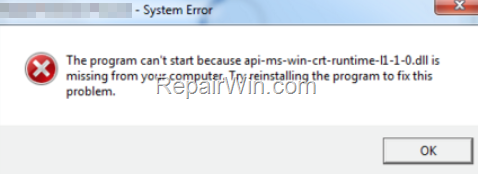
FIX: "api-ms-win-crt-runtime-l1-1-0.dll is missing" or "api-ms-win-crt-heap-l1-1-0.dll is missing" in Windows 8.1.
Method 1. Install Visual C++ Redistributable for Visual Studio 2015.
The first method to fix the mentioned errors, is to install both versions (32 & 64bit) of Microsoft Visual C++ 2015 Redistributable. If errors still occur after installing Visual C ++, continue to Method 2.
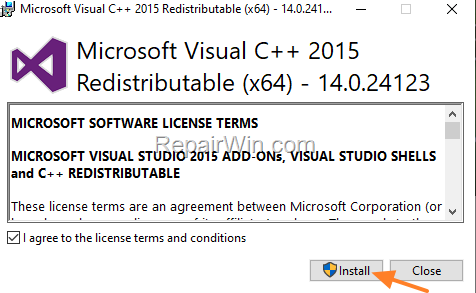
Method 2. Install Missing Windows Updates & Reinstall Visual C++
Step 1. Install Hotfix 2975061.
1. According your OS version proceed to download and install the Hotfix 2975061 (May 2014 servicing stack update for Windows 8.1 and Windows Server 2012 R2). When the installation is completed, reboot your PC.
Step 2. Install KB2919355 Update.
1. Download and Install KB2919355 update and reboot your PC again.*
* Notes:
1. Installing this update takes time, so be patient…
2. If the update fails to install, perform the following steps and try again:
1. Open Command Prompt as Administrator and give the following commands in order:
- net stop cryptsvc
- net stop bits
- net stop wuauserv
- ren %systemroot%\softwaredistribution softwaredistribution.bak
- ren %systemroot%\system32\catroot2 catroot2.bak
- net start cryptsvc
- net start bits
- net start wuauserv
2. Close Command Prompt and try to install the update again.
Step 3. Uninstall All Versions of Microsoft Visual C++
1. Navigate to Control Panel > Programs and Features.
2. Uninstall all versions of Microsoft Visual C++ and then reboot your PC.

Step 4. Install Visual C++ 2015.
1. After restart, proceed and install both versions (32 & 64bit) of Microsoft Visual C++ 2015 Redistributable.
2. Then, try to run the program with the error. It should open now without any problems. *
* Note: If the problem persists, go to the Windows Update Center and download and install any available updates.
That’s all folks! Did it work for you?
Please leave a comment in the comment section below or even better: like and share this blog post in the social networks to help spread the word about this solution.
Frequently Asked Questions
Why am I seeing the error 'api-ms-win-crt-runtime-l1-1-0.dll' or 'api-ms-win-crt-heap-l1-1-0.dll' missing when I open a program on Windows 8.1?
These errors occur when Visual C++ Redistributable for Visual Studio 2015 is not installed on your Windows 8.1 system, or if there are missing or corrupted Windows updates.
How can I fix the 'api-ms-win-crt-runtime-l1-1-0.dll' or 'api-ms-win-crt-heap-l1-1-0.dll' missing error on Windows 8.1?
First, try installing both the 32-bit and 64-bit versions of Visual C++ Redistributable for Visual Studio 2015. If this doesn't resolve the problem, proceed with installing missing Windows updates and then reinstall Visual C++.
What steps should I follow if the Visual C++ installation doesn't fix the DLL error?
If the issue persists, install the Hotfix 2975061 and KB2919355 update. Ensure these installations succeed by stopping certain services, renaming directories, and restarting services as needed. Finally, uninstall previous versions of Microsoft Visual C++, reboot, and reinstall Visual C++ 2015.
What should I do if the necessary updates fail to install on my Windows 8.1 system?
If an update fails, try the following: Open Command Prompt as an administrator, stop specific services, rename software distribution folders, restart services, and attempt the update installation again.