FIX: Outlook Search Not Showing Recent Emails or Not Working after KB5008212 Update.
Many users reported that Outlook search stopped working or did not work properly after installing the KB5008212 update on Windows 10. If you are facing the same problem, then continue below to solve the problem.
Problem in Details: After installing Windows 10 KB5008212 update, Outlook search doesn't returning any results or Outlook not showing recent emails in search results. Microsoft has acknowledged the issue and says that is caused by the Windows search service. The issue occurs in all versions of Outlook (Office365, Outlook 2019, 2016 or 2013) on Windows 10 or Windows 11 OS.
This guide contains several methods to fix Outlook search problems after installing KB5008212 Cumulative Update for Windows 10.
How to FIX: Outlook Search Not Working after Windows Update KB5008212.*
* Update: According to Microsoft the issue is resolved in KB5010342. update.
Method 1. Fix Outlook Search Not Working by Uninstalling KB5008212 Update.
The first method to fix Outlook search problems, is to remove the KB5008212 Update.
Step 1. Remove KB5008212 Update.
1. Go to Settings -> Update and Security.
2. Click View update history.
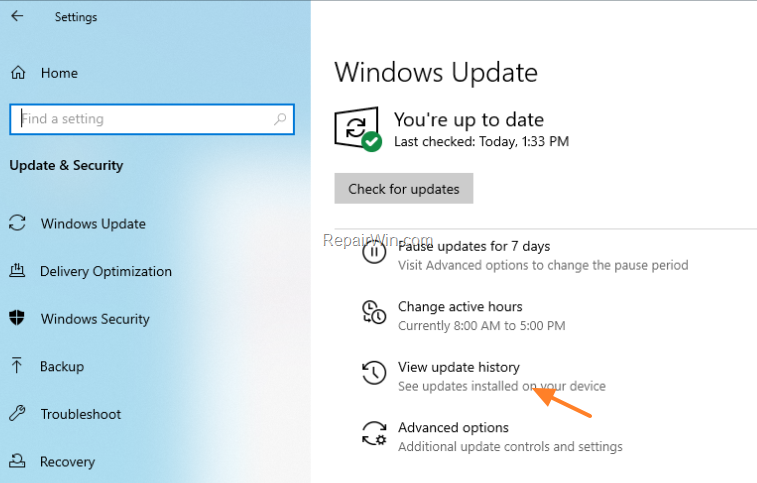
3. Click Uninstall updates.

4. Select the KB5008212 and click Uninstall. *
* Note: If you don't see the KB5008212 in the list, do the following:
a. Open Command Prompt as Administrator.
b. Give the following command:
- wusa /uninstall /kb:5008212
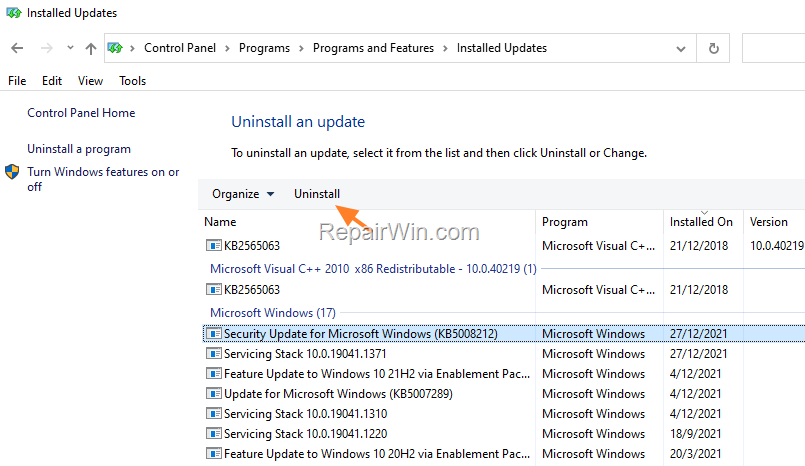
5. Restart your PC.
Step 2.Prevent the reinstallation of KB5008212.
1. Download the Show or Hide updates tool "wushowhide.diagcab" tool from here: https://www.majorgeeks.com/files/details/wushowhide.html
2. Run the tool and click Next at first screen.
3. At the next screen click Hide updates.

4. Let the tool to find the available updates and when this done, select the 2021-12 Cumulative Update for Windows 10 Version (KB5008212) and click Next.
5. When the troubleshooting is complete close the troubleshooter and continue your work.
Method 2. Install Windows Update KB5009543.
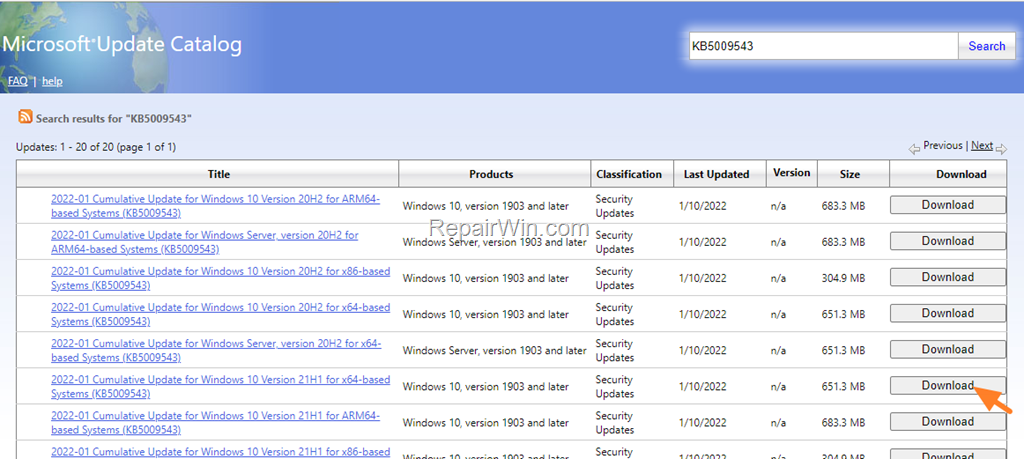
According your Windows edition,* proceed to downlead and install the 2022-01 Cumulative Update for Windows 10 KB5009543 Update from Microsoft Update Catalog.
* Note: To find out the Windows Edition, type winver and press Enter in Search.
.
Method 3. Disable Windows Desktop Search Service for Outlook.
The next method (but temporary solution) to fix the "Outlook search not working" problem after Windows Update KB5008212, is to disable the Windows Desktop Search and to force Outlook to use it's built-in search. To disable Windows search in Outlook:
1. Press Windows  + R keys to open the run command box.
2. Type regedit and press Enter.

3. In Registry Editor navigate to the following key:
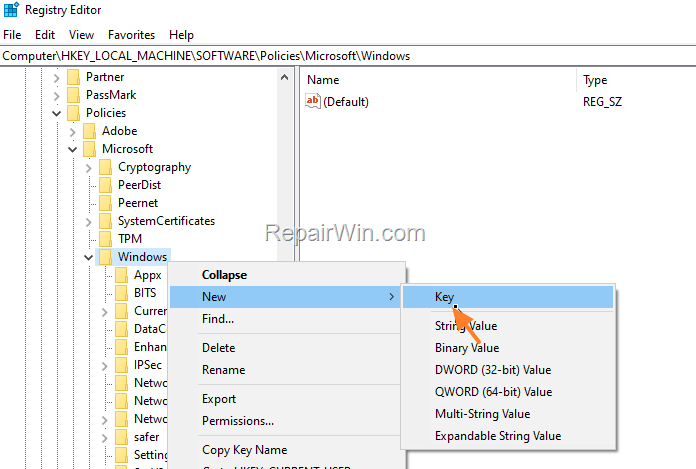
- HKEY_LOCAL_MACHINE\SOFTWARE\Policies\Microsoft\Windows
4a. Right-click at Windows key and choose New > Key.
4b. Give at the new key the name Windows Search
5a. Right-click at Windows Search Key and select New > DWORD (32-bit) Value

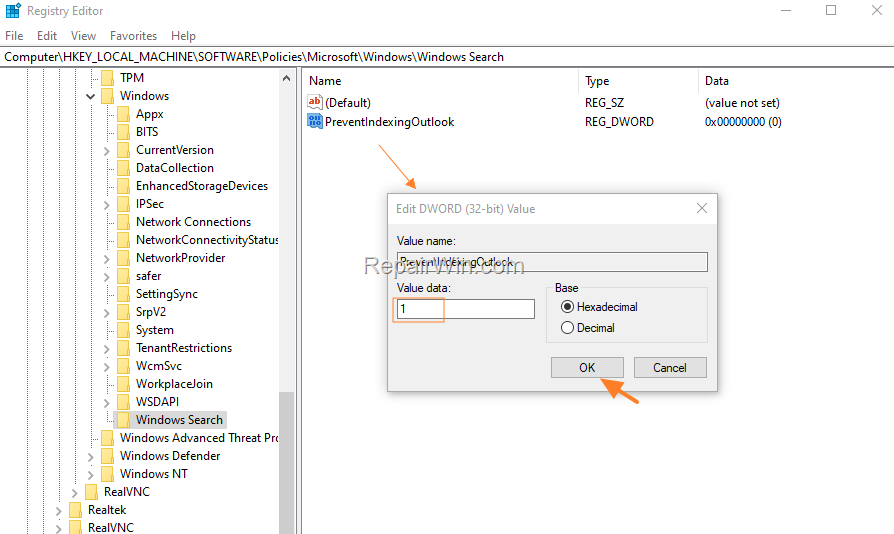
5b. Give at the new value the name: PreventIndexingOutlook
5c. Double-click at the PreventIndexingOutlook value, set the value data to 1 and click OK.
6. Close the registry editor.
7. Restart Outlook. *
* Notes:
1. Since this method is a temporary solution, put the PreventIndexingOutlook value to 0 after installing updates to find out if the issue fixed.
2. Keep in mind that the Outlook built-in search (when searching), will display the following message to indicate that it is not using the Windows Search service:
-
Search performance will be impacted because a group policy has turned off the Windows Search service.

That's all folks! Did it work for you?
Please leave a comment in the comment section below or even better: like and share this blog post in the social networks to help spread the word about this problem.
Frequently Asked Questions
Why isn't my Outlook search working after installing update KB5008212?
The Outlook search issue after the KB5008212 update is acknowledged by Microsoft and stems from a problem with the Windows search service. It affects all Outlook versions on Windows 10 and 11.
How can I fix the Outlook search problem caused by update KB5008212?
You can resolve the Outlook search problem by uninstalling the KB5008212 update. Go to Settings > Update and Security > View update history > Uninstall updates, select KB5008212, and uninstall it. Then, restart your PC and prevent the update from reinstalling using the 'wushowhide.diagcab' tool.
Is there a specific update that resolves the search issue in Outlook?
Yes, the search issue is reportedly resolved with the installation of the KB5010342 update. Ensure your system is updated with this version to potentially fix the problem.
What temporary workaround can I use to fix the Outlook search issue without uninstalling updates?
You can disable the Windows Desktop Search Service for Outlook as a temporary solution. This forces Outlook to use its built-in search. Change the registry settings by adding the 'PreventIndexingOutlook' DWORD under 'HKEY_LOCAL_MACHINE\SOFTWARE\Policies\Microsoft\Windows\Windows Search' and setting its value to 1.

- iPhone 17 vs. iPhone 16: Comparison and Who Actually Benefits. - June 16, 2026
- How to Factory Reset and Wipe an Android Device: What You Need to Know - June 12, 2026
- BitLocker Recovery Key: What You Need to Know in 2026 - June 9, 2026