
How to Change Taskbar Size in Windows 11.
If you want to change the size of the taskbar and the size of the taskbar icons in windows 11, continue reading below. By default, the taskbar in Windows 11 is medium-sized, but if you want, you can resize it to have larger or smaller icons, depending on your preference.
The size of the Windows 11 taskbar cannot be adjusted through Windows settings like in Windows 10, and you need to apply a registry tweak to change the size of the taskbar in order to have small icons or large icons.
How to Resize Taskbar and Icons Size in Windows 11.
To modify the taskbar icons size to smaller/larger in Windows 11:
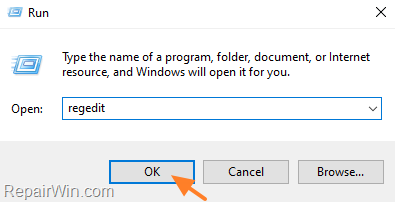
1. Open Registry Editor. To do that:
1. Press Windows
+ R keys to open the run command box.
2. Type regedit and press Enter.

2. Navigate to the following key:
- HKEY_CURRENT_USER\Software\Microsoft\Windows\CurrentVersion\Explorer\Advanced
3. Right-click at Advanced key and select New -> DWORD (32-bit) Value

4. Rename the "New Value #1" to TaskbarSi

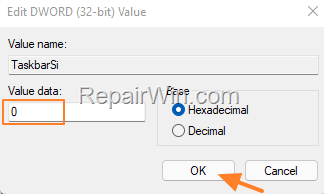
5. Double click at TaskbarSi value and change the value data to 0 for small taskbar icons, or to 2 for large taskbar icons. *
* Note: If you want to revert to the default taskbar and icons size, set the Value Data to "1", or delete the "TaskbarSi" REG_DWORD value.
6. Close Registry Editor.
7. Restart your computer to apply change and you're done!
That's all folks! Did it work for you?
Please leave a comment in the comment section below or even better: like and share this blog post in the social networks to help spread the word about this problem.
Frequently Asked Questions
How can I adjust the taskbar size in Windows 11?
To adjust the taskbar size in Windows 11, you need to use a registry tweak. You cannot change it through the standard Windows settings as you could in Windows 10.
Where do I find the option to change taskbar icon size in the Registry Editor?
Open the Registry Editor and navigate to HKEY_CURRENT_USER\Software\Microsoft\Windows\CurrentVersion\Explorer\Advanced. Here, you can create or modify the 'TaskbarSi' value to adjust the taskbar icon size.
What values should I set for different taskbar sizes using the registry?
In the Registry Editor, set the 'TaskbarSi' value data to 0 for small icons, 2 for large icons, and 1 for the default size.
What should I do after changing the taskbar size via Registry Editor?
After making changes in the Registry Editor, close it and restart your computer to apply the new taskbar size.



November 25, 2022 @ 9:55 pm
Hey! Thanks for this useful guide, I changed to windows 11 today and immediately hated the task bar size. I followed these steps and changed the value to 0 which worked, but now means the date/time on the right of the taskbar don't fit properly. Any suggestions?