
FIX: VCRUNTIME140_1.dll Was Not Found (Solved)
This tutorial contains instructions to fix the following error in Windows 10 when you try to run or install a program: “The code execution cannot proceed because VCRUNTIME140_1.dll was not found. Reinstalling the program to fix this problem”.
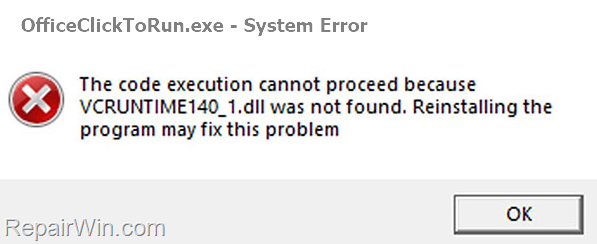
The "VCRUNTIME140_1" file is a part of Microsoft Visual C++ 2015 and is required by applications that are developed using Visual Studio 2015. If the "VCRUNTIME140_1" file is missing or corrupted, then Windows displays the "VCRUNTIME140_1.DLL was not found" or "VCRUNTIME140_1.D is missing" errors.
How to FIX: VCRUNTIME140_1.DLL or VCRUNTIME140.DLL NOT FOUND/Missing.
1. Download the Microsoft Visual C++ 2015 Redistributable package.
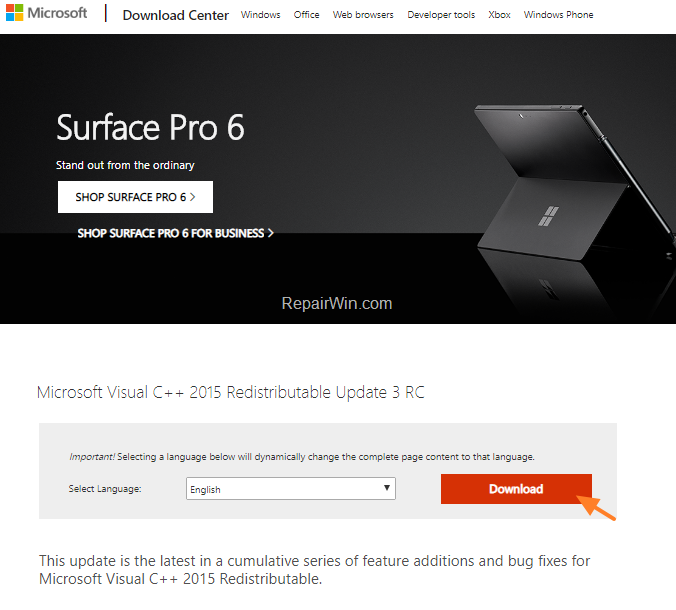
2. At the next screen, select according your Windows architecture (32 or 64-bit), the corresponding "vc_redist.exe" file to download (or download & install both files if you unsure).

3. When the download is completed, double click at "vc_redist.exe" you downloaded.
4. Accept the license terms and click Install.

5. Now try to run or to install the application with "VCRUNTIME140_1.dll not found – missing" error. Problem should be solved now.
That's all folks! Did it work for you?
Please leave a comment in the comment section below or even better: like and share this blog post in the social networks to help spread the word about this problem.
Frequently Asked Questions
What causes the 'VCRUNTIME140_1.dll was not found' error in Windows 10?
The 'VCRUNTIME140_1.dll was not found' error occurs when the VCRUNTIME140_1 DLL file, a component of Microsoft Visual C++ 2015, is missing or corrupted. This file is necessary for applications developed with Visual Studio 2015 to run correctly.
How can I fix the 'VCRUNTIME140_1.dll missing' error on Windows 10?
To fix the 'VCRUNTIME140_1.dll missing' error, download and install the Microsoft Visual C++ 2015 Redistributable package. Choose the appropriate 'vc_redist.exe' installer based on your Windows architecture and follow the installation prompts.
What should I do if I'm unsure about my Windows architecture when downloading the vc_redist.exe file?
If you are unsure about your Windows architecture, you can download and install both the 32-bit and 64-bit versions of the vc_redist.exe file. This will ensure compatibility regardless of your system's configuration.
Is there anything else I should do after installing the Microsoft Visual C++ 2015 Redistributable package?
After installing the Microsoft Visual C++ 2015 Redistributable package, try running or installing the application that previously showed the 'VCRUNTIME140_1.dll not found - missing' error. The problem should be resolved.




June 2, 2022 @ 10:20 am
I do like you say but it still say it missing, file not found, I redo it like 5 time a row so hope you seeing it and help me
June 2, 2022 @ 5:11 pm
Try to install both "vc_redist.exe" versions (x86 & x64)