
FIX: OneDrive Won't Start in Windows 10 (Solved)
This troubleshooting guide contains instructions to resolve the following problem in Windows 10: OneDrive won't start in any way and without displaying any error. The issue can occur with OneDrive for personal use, as well as OneDrive for Business, for no apparent reason, and it usually can't be fixed by uninstalling and reinstalling the OneDrive app.
This tutorial contains instructions to solve the following problems with OneDrive:
- OneDrive Doesn't Start (OneDrive Doesn't Open)
- OneDrive Doesn't Synchronize Files.
- You Cannot Add your Account in OneDrive.
How to FIX: OneDrive Doesn't Open or Doesn't Synchronize files in Windows 10.
Method 1. Enable the OneDrive App through Registry or Policy.
A. Enable OneDrive through Registry.
1. Open the Registry Editor and navigate to this key: *
- HKEY_LOCAL_MACHINE\Software\Policies\Microsoft\Windows\OneDrive
* Note: If the key doesn't exit, try to enable OneDrive through policy (if you own Windows 10 Pro), or skip to next method.
2. At the left pane, delete the DisableFileSyncNGSC value. or set the value data to 0.

3. Restart your PC and try to open OneDrive.
B. Enable OneDrive through Policy in Windows Pro & Server versions.
1. Open the Local Group Policy Editor. (gpedit.msc)
2. Navigate to:
Local Computer Policy > Computer Configuration > Administrative Templates > Windows Components > OneDrive
3. Open the Prevent the usage of OneDrive for file storage policy and set it to "Disabled".
4. Restart the computer and try to launch OneDrive.
Method 2. Reset OneDrive App.
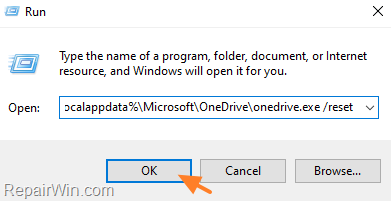
1. Press Windows  + R keys to open the run command box.
2. In the "Open" box, type the following command & click OK: *
- %localappdata%\Microsoft\OneDrive\onedrive.exe /reset
* Note: If you see a "Windows cannot find…" message, copy and paste this command instead:
- C:\Program Files (x86)\Microsoft OneDrive\onedrive.exe /reset
Method 3. Uninstall and Re-Install OneDrive
Step 1. Uninstall OneDrive from Windows.
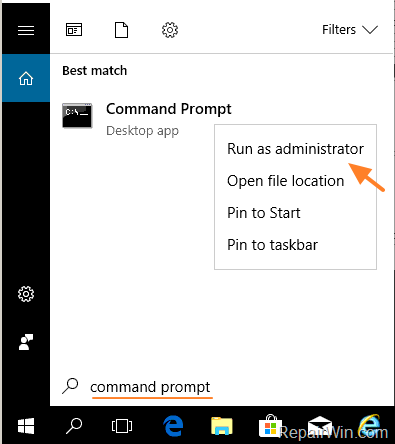
1. Open Command Prompt as Administrator. To do that:
- At the search box type: command prompt or cmd
- Right-click at Command Prompt result and select Run As Administrator.
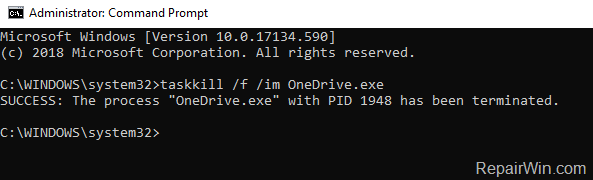
2. At command prompt give the following command to close OneDrive:
- taskkill /f /im OneDrive.exe
3. Proceed and remove the OneDrive app from your system, by using the below command, according your OS version (32 or 64bit):
- For Windows 64-bit:
- %Systemroot%\SysWOW64\OneDriveSetup.exe /uninstall
- For Windows 32-bit:
- %Systemroot%\System32\OneDriveSetup.exe /uninstall
Step 2. Download and Re-Install OneDrive from Microsoft.
1. Download the latest version of OneDrive.
2. Open the downloaded file (OneDriveSetip.exe) and install OneDrive to your computer.
3. Finally, sign-in to your account and start syncing.
That’s all folks! Did it work for you?
Please leave a comment in the comment section below or even better: like and share this blog post in the social networks to help spread the word about this solution.
Frequently Asked Questions
Why won't OneDrive start on Windows 10, and how can I fix it?
OneDrive might not start due to disabled settings in the Registry or Group Policy. To fix this, enable OneDrive through Registry by navigating to HKEY_LOCAL_MACHINE\Software\Policies\Microsoft\Windows\OneDrive and deleting the DisableFileSyncNGSC value. Alternatively, enable it via Group Policy for Windows Pro by setting 'Prevent the usage of OneDrive for file storage' to 'Disabled'. Restart your computer afterwards.
How can I reset my OneDrive app?
To reset OneDrive, press Windows + R to open the Run command box, then type %localappdata%\Microsoft\OneDrive\onedrive.exe /reset and click OK. If this command doesn't work, use C:\Program Files (x86)\Microsoft OneDrive\onedrive.exe /reset instead.
What steps should I follow to uninstall and reinstall OneDrive?
First, open Command Prompt as Administrator and close OneDrive using taskkill /f /im OneDrive.exe. Uninstall the app using %Systemroot%\SysWOW64\OneDriveSetup.exe /uninstall for 64-bit or %Systemroot%\System32\OneDriveSetup.exe /uninstall for 32-bit. Then, download and install the latest version of OneDrive from Microsoft's website and sign in to your account.
What should I do if OneDrive doesn't synchronize files?
If OneDrive fails to synchronize files, try resetting the app using the steps provided, or enable OneDrive through Group Policy or Registry. If synchronization issues persist, uninstall and then reinstall the app to refresh its connection.




September 8, 2022 @ 1:04 am
Group policy method fixed the problem. Thanks.