
Contact Form 7 Not Working: There was an error to send your message. Please try again later. (Solved)
If the Contact form 7 on your WordPress site is not working, continue reading below to fix the problem. Contact Form 7, is one of the most famous free WordPress plugins, that helps you to create, manage and customize the contact form in your WordPress site. Recently, I discovered that the "Contact Form 7" plugin on my site (and in many others), has stopped working with error "There was an error to send your message. Please try again later", which is surrounded by an orange rectangle, after submitting the form.
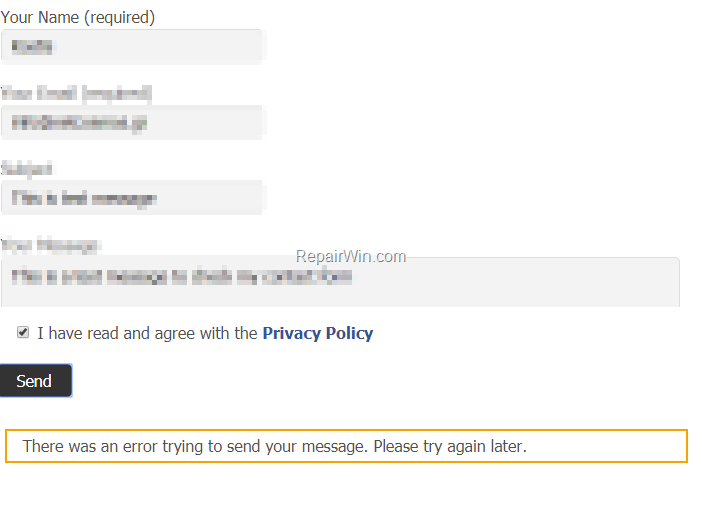
This tutorial contains instructions to fix the error "There was an error to send your message. Please try again later" inside an orange box, after submitting the contact form.
How to FIX: Contact Form Not Working with error "There was an error to send your message".
If your Contact Form 7 on your WordPress, site is not working anymore, follow the steps below:
Step 1. Validate Contact Form 7.
1. Navigate to your WordPress admin dashboard and click Contact > Contact Forms.
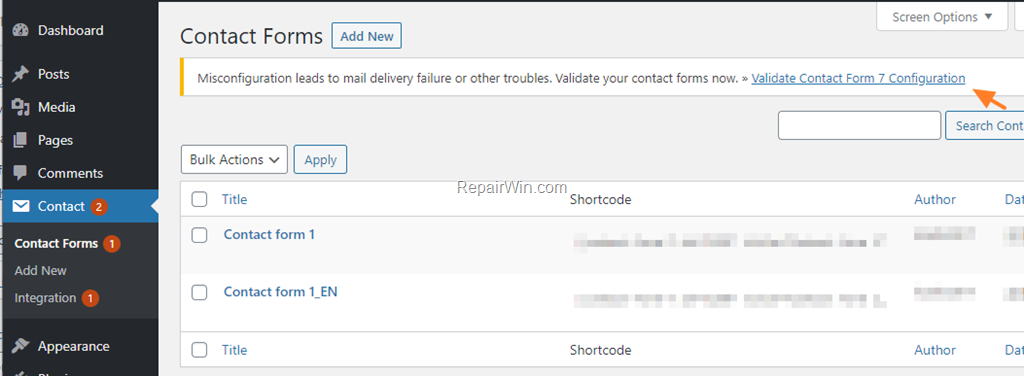
2. On the top of page, check if there is an error message says "Misconfiguration lead to mail delivery failure or other troubles. Validate your contact forms now".
3. If you see that message,* then click the Validate Contact Form 7 Configuration link.
* Note: If you don't see that message, skip to step 2.
4. At the next screen, click the Validate 2 contact forms now button.

5. When the configuration validation is completed, you should receive that "No invalid contact form was found".

6. Test your contact form and if the error persists, continue to step-2 below.
Step 2. Setup Contact Form 7 with reCAPTCHA V3 keys.
During my research, I discovered that the latest versions of the Contact Form 7 (v5.1 and later) uses the reCAPTCHA v3 API to protect you against spam and other types of automated abuse. So, based on this, you have the following two options to resolve the contact form error "There was an error to send your message. Please try again later.": *
-
Option 1. To setup Contact Form 7 with reCAPTCHA V3 keys.
-
Option 2. To use the Contact Form 7 – reCaptcha v2 plugin for your contact forms.
* Note: In this article, I will show you, how to setup Contact Form 7 with reCAPTCHA V3 keys. If you don't want to use the reCAPTCHA V3 protection, then uninstall the 'Contact Form 7' plugin and install the Contact Form 7 – reCaptcha v2 plugin.
To Setup Contact Form 7 with reCAPTCHA V3 keys:
1. Sign in to your Google Account, you used to setup reCAPTCHA on your site and navigate to the Google's reCAPTCHA admin console.
2. Click the Settings  icon.
icon.
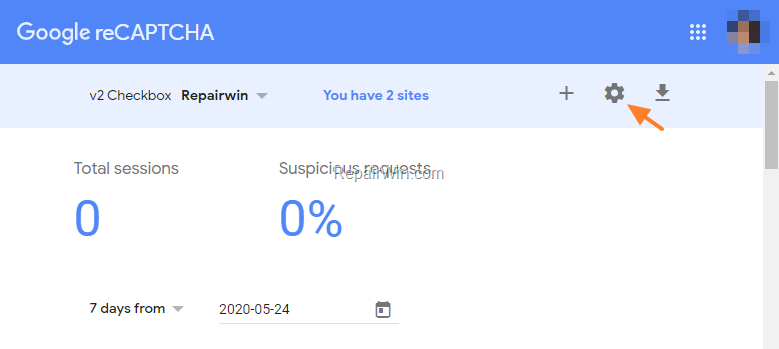
3. Click the Recycle bin icon  and delete the reCAPTCHA V2 keys.

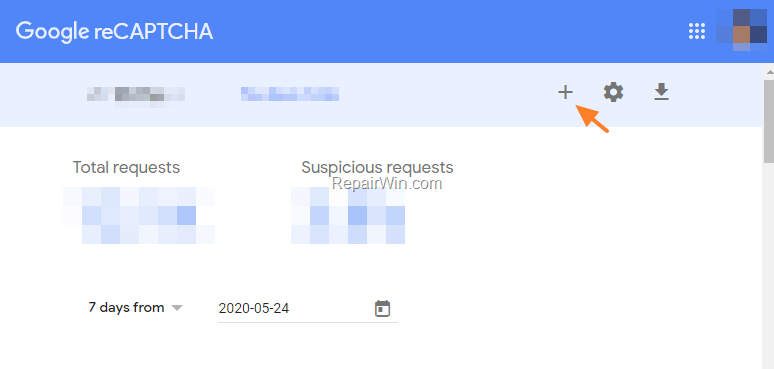
4. Click the Plus icon  to register again your site.
5. At the 'Register a new site' screen:
a. Type a name to identify your site in the future,
b. Choose the reCAPTCHA v3 type.
c. Type the domain name of your site.
d. Accept the reCAPTCHA Terms of Service.
e. Click SUBMIT.

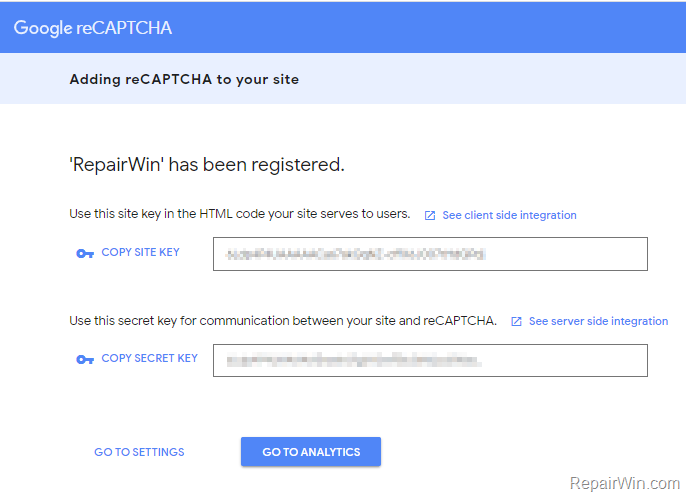
6. After the registration, you see a screen with the SITE KEY and the SECRET KEY.
7. Click COPY SITE KEY and DO NOT CLOSE this window.
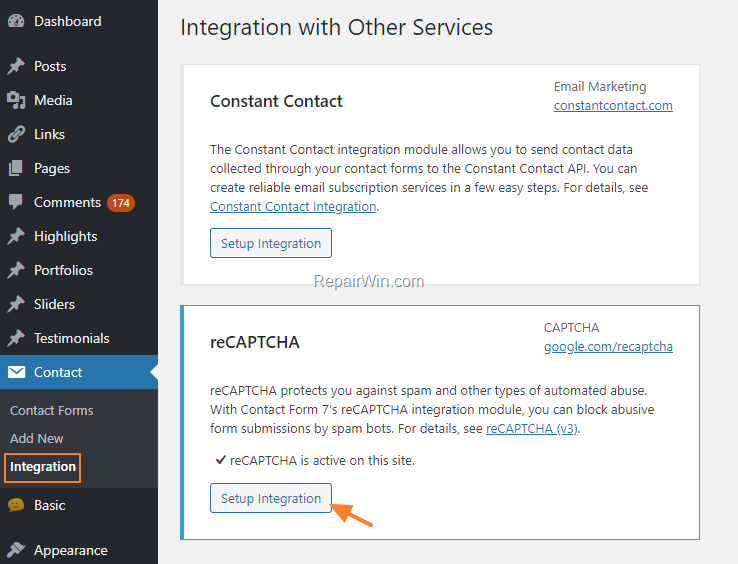
8. In another browser window, navigate to your WordPress admin dashboard and click Contact > Integration.
9. Click the Setup Integration button.
10. Click the Remove keys button to delete the reCAPTCHA V2 keys.

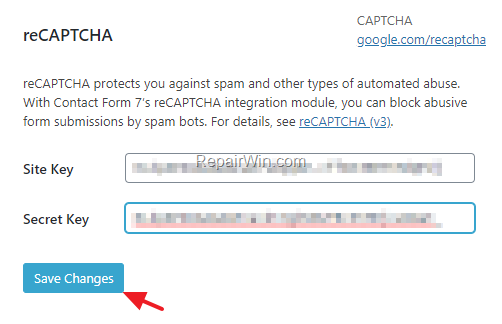
11. Paste the new Site Key and then Copy & Paste the new Secret Key from the reCAPTCHA admin console, and click Save Changes.
12. Delete the Cache on your site.
13. Open a new browser window and test your contact form.
That's all folks! Did it work for you? Please leave a comment in the comment section below or even better: like and share this blog post in the social networks to help spread the word about this solution.
Frequently Asked Questions
What should I do first if my Contact Form 7 isn't working on my WordPress site?
First, validate Contact Form 7 by navigating to your WordPress admin dashboard and checking for a misconfiguration error message in the Contact Forms section. If present, click the 'Validate Contact Form 7 Configuration' link and follow the prompts to validate your forms.
How can reCAPTCHA v3 help with Contact Form 7 errors?
The latest versions of Contact Form 7 use the reCAPTCHA v3 API to protect against spam and automated abuse. By setting up reCAPTCHA v3 keys, you can resolve issues related to form submission errors.
Can I use an alternative to reCAPTCHA v3 with Contact Form 7?
Yes, you can use the 'Contact Form 7 – reCaptcha v2' plugin if you prefer not to use reCAPTCHA v3. Simply uninstall the existing Contact Form 7 plugin and install the alternative plugin.
How do I set up reCAPTCHA v3 keys for Contact Form 7?
To set up reCAPTCHA v3 keys, sign in to your Google Account, access the reCAPTCHA admin console, and register your site with the reCAPTCHA v3 option. Then, integrate the new SITE KEY and SECRET KEY into your WordPress dashboard under Contact > Integration.



