
FIX: Quick Access Not Working & Cannot type in Search box in Windows 10 (Solved)
If Quick Access menu not working in Windows 10, then read this tutorial to fix the issue. The Quick Access option in File Explorer, allows the user to easy navigate to the recent opened files and folders. But sometimes, especially when you have previously opened a file / folder from an external drive (e.g. your USB Disk), that is now offline, the Quick Access is not showing the recent files or you cannot type in 'Search' bar.

How to FIX: Quick Access feature and Search function Doesn't Not Work in Windows 10.
Method 1. Restart Windows Explorer.
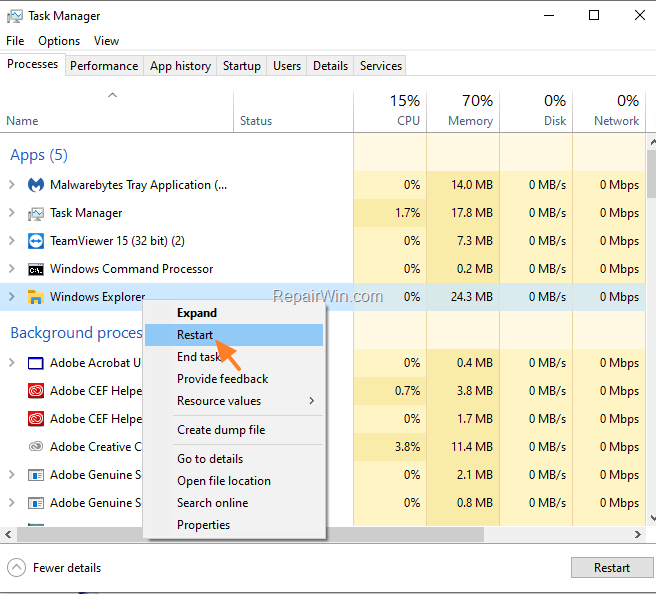
The first method to fix the Quick Access problem, is to restart the Windows Explorer process from the Task Manager. To do that:
1. Press Ctrl + Alt + Del to open Task Manager.
2. At Processes * tab, highlight the Windows Explorer process and click Restart.
* Note: If you don't see the 'Process' tab, click More Details.
Method 2. Enable Quick Access Recent items & Clear File Explorer History.
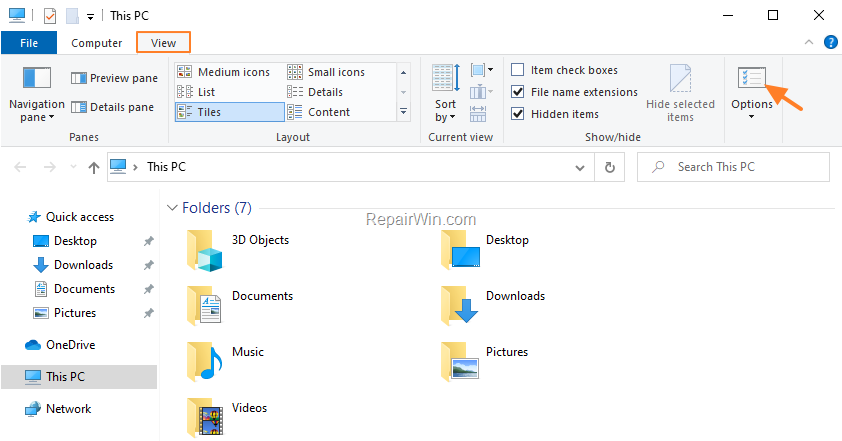
1. Open Folder Options. To do that, open Windows Explorer and from the menu, go to View > Options.
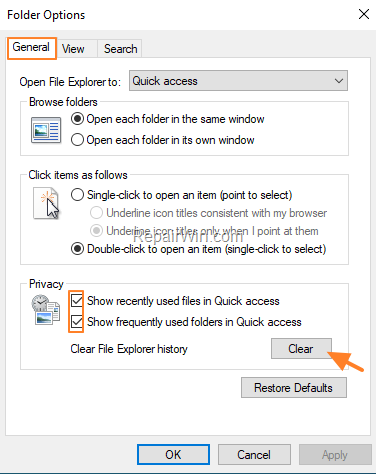
2. In General tab, make sure that the following checkboxes are selected.
- Show recently used files in Quick access
- Show frequently used folders in Quick Access.
3. Then click the Clear button to clear the File Explorer history.
3. Click OK and check if the Quick Access and the search function are working. If not, restart the 'File Explorer' by using the Task Manager (see method-1 above) and check again. If the problem persists continue to the next method.
Method 3. Clear Recent Items History Manually.
The next method to resolve problems with the Quick Access recent items or with the 'Search' function in Windows 10, is to delete the recent items history manually. To do that:
1. Open Windows Explorer.
2. Copy and paste the following address in the address bar and press Enter:
%AppData%\Microsoft\Windows\Recent\AutomaticDestinations
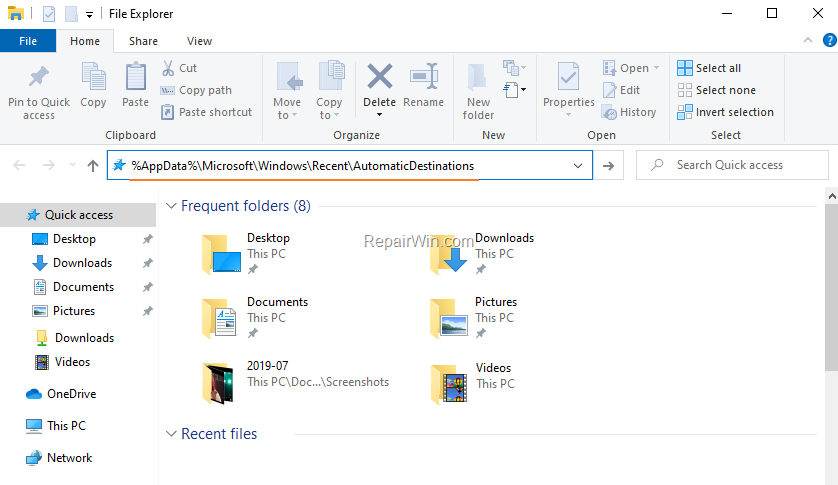
3. Press Ctrl + A (to select all items) and hit Delete (or right-click > Delete).
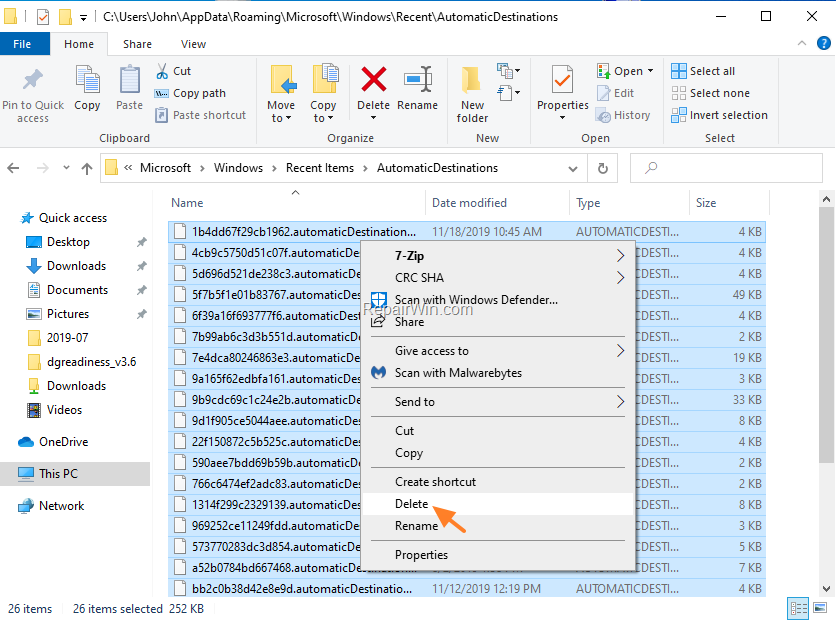
4. Then copy/paste the following address in address bar and press Enter.
%AppData%\Microsoft\Windows\Recent\CustomDestinations
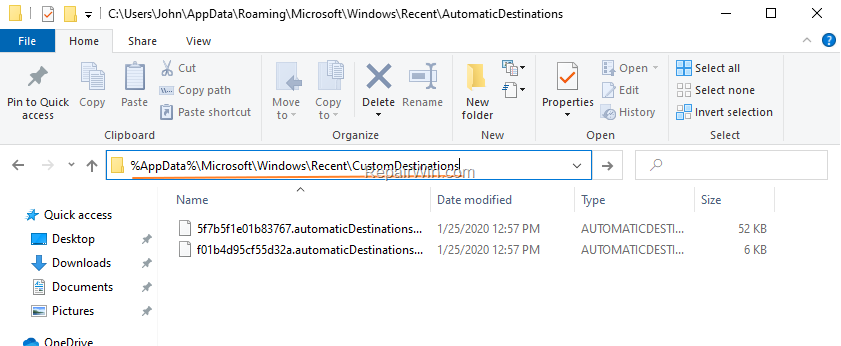
5. Press Ctrl + A again (to select all items) and hit Delete.
6. Now press Ctrl + Alt + Del to open Task Manager.
7. At Processes tab, highlight the Windows Explorer process and click Restart.
8. Normally, the problems with the 'Quick Access' feature or with the 'Search'" function, must have been resolved.
That's all folks! Did it work for you?
Please leave a comment in the comment section below or even better: like and share this blog post in the social networks to help spread the word about this solution.
Frequently Asked Questions
Why is Quick Access not working in Windows 10?
Sometimes Quick Access may not work due to recent files or folders from an external drive that is currently offline, preventing it from showing recent files or allowing searches.
How do I restart Windows Explorer to fix Quick Access?
Open Task Manager by pressing Ctrl + Alt + Del. Highlight the Windows Explorer process in the Processes tab and click Restart.
How can I manually clear recent items history for Quick Access?
Open Windows Explorer and navigate to %AppData%\Microsoft\Windows\Recent\AutomaticDestinations. Press Ctrl + A to select all items and delete them. Repeat this process in %AppData%\Microsoft\Windows\Recent\CustomDestinations.
How do I enable recent items in Quick Access?
In Windows Explorer, go to View > Options to open Folder Options. Ensure the checkboxes for 'Show recently used files in Quick access' and 'Show frequently used folders in Quick Access' are selected.


February 2, 2021 @ 3:59 am
You're a godsend – Thank you !
It worked perfectly!!!
September 16, 2022 @ 2:39 pm
Thanks! It worked!