
FIX: Duplicate User Names in Sign-in Screen After Windows 10 Update.
This tutorial contains several methods to fix the duplicate user names issue in sign-in screen after updating Windows 10. The "duplicate user names in login screen" issue is reported by many users and caused after updates are installed on Windows 10.
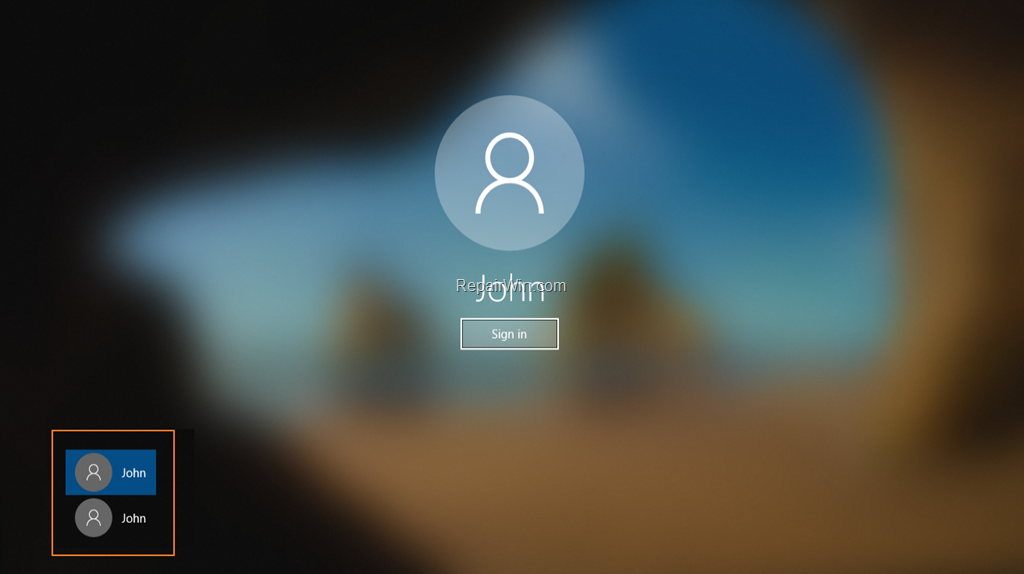
Problem in details: After you rename your computer or after installing updates in Windows 10, the system does not automatically login into your user account with error "the user name or password is incorrect. Try again" and at the same time your user name appears twice in the login screen.
How to fix: Windows 10 Login Screen Shows the Same User Twice.
Method 1. Remove the Duplicate Account from User Account options.
The first method to remove the duplicate usernames from the login screen, is to delete the duplicate account from your PC.
1. Press Windows  + R keys to open the run command box.
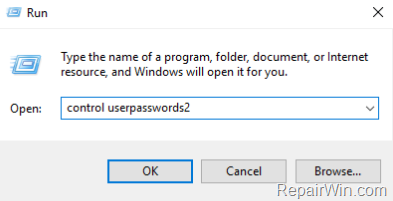
2. In the "Open" box, type: control userpasswords2 & click OK.
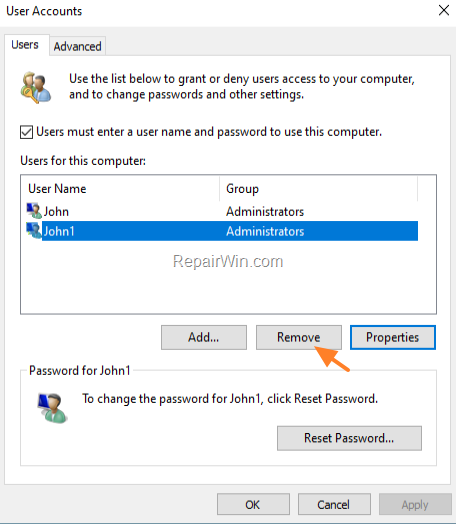
3. At User Accounts options, perform the following actions according your case:
- Case A. If you see two accounts with the same user name:
a. Select the secondary account and click Remove.
b. Click OK and restart your PC.
c. If after restarting, you still see your user name twice on the logon screen continue to Method 2.
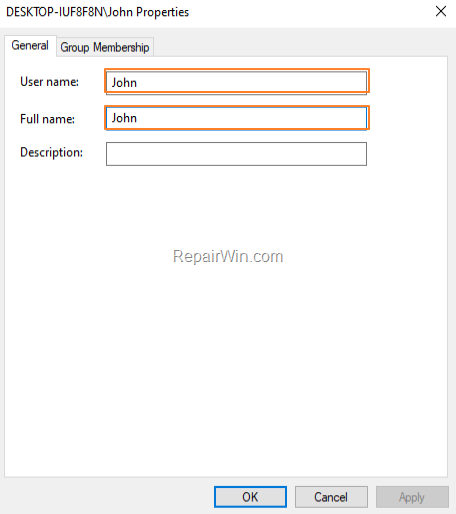
- Case B. If you see only one account:
a. Select the account and click Properties.
b. Copy the Full name and paste it at the User name field, in order to match. *
c. Click OK and restart your PC.
* Note: If the User name and the full name already matches, go to method 2.
Method 2. Disable the Password requirement at Sign-in.
1. Follow the steps 1 & 2 from the previous method to open the 'User Accounts' options.
2. Uncheck the User must enter a user name and password to use this computer and click Apply
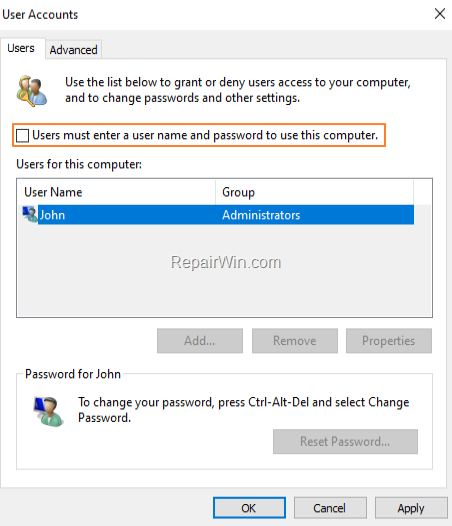
3. Type your password (twice) and click OK twice to close all windows.

4. Reboot your computer. If your user name appears twice again, continue to the next method.
Method 3. Modify the Sign-in options.
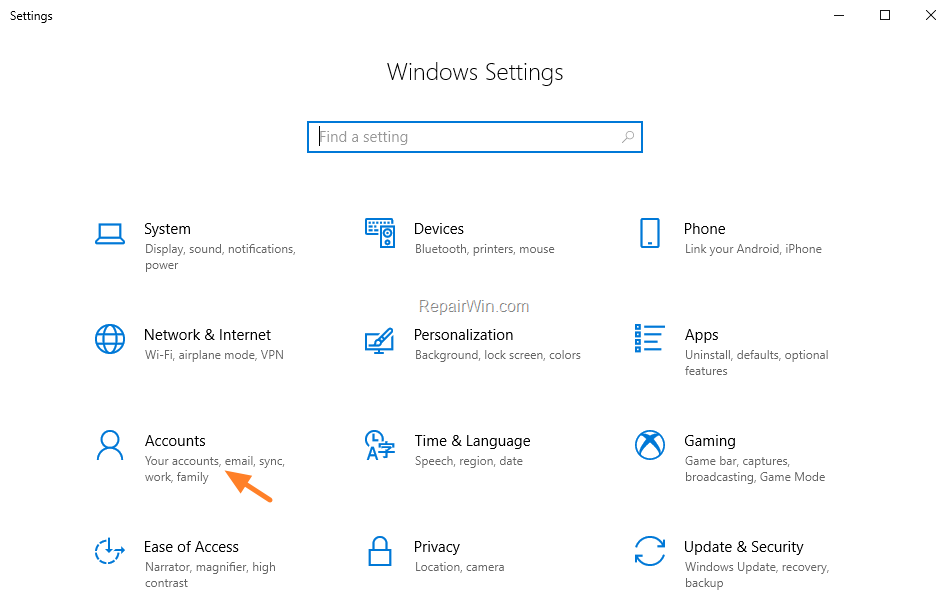
1. From Start  menu, open Settings
  and then click Accounts.
2. Select Sign-in options on the left pane, and turn off the Use my sign-in info to automatically finish setting up my device and reopen my apps after update or restart.
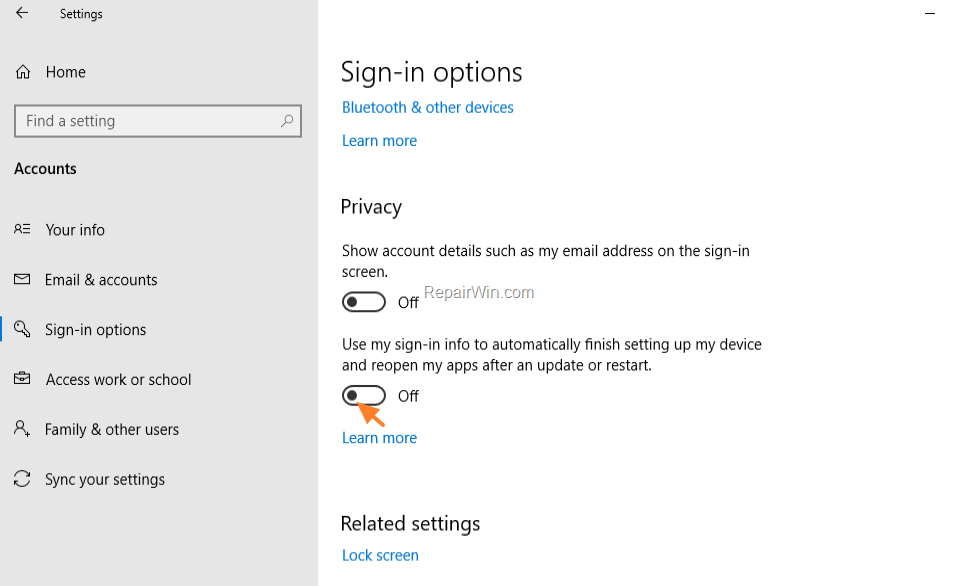
3. Restart your PC.
Method 4. Change to Local Account.
The final method to resolve the "duplicate user names" issue, is to use a local account to login in Windows 10. To do that:
1. From Start  menu, open Settings and then click Accounts.
2. Click Email and accounts on the left pane.
3. Next click Sign in with a local account instead.

4. Enter you Microsoft account password and click Next.
5. Then type the username, the password (optional) for the new local account and click Next.
6. After restart, type you password to login with the new local account.
That's all folks! Did it work for you?
Please leave a comment in the comment section below or even better: like and share this blog post in the social networks to help spread the word about this solution.
Frequently Asked Questions
Why do I see duplicate user names on the Windows 10 sign-in screen after updating?
This issue often occurs after updates are installed or when the computer is renamed, causing the system to fail automatic login and show duplicate user names.
How can I remove duplicate user names from the login screen?
You can remove duplicate user names by deleting the duplicate account via 'User Accounts' options or by ensuring the User name and Full name fields match. If issues persist, follow other methods described in the tutorial.
What should I do if I see only one account but still face login issues?
Select the account in 'User Accounts', click Properties, and ensure that the Full name matches the User name. If they match and the issue persists, proceed to the next method.
How can changing to a local account help with the login issue?
Changing to a local account can sometimes resolve the duplicate user names issue by providing a fresh login approach that does not rely on your Microsoft account syncing.



January 16, 2021 @ 7:55 pm
Hi. I had to fiddle around with your method 2 a little bit, but in the end, I got it to work! Really thanks a lot.
P.S. On my machine, I had to CHECK the box "User must enter a user name and password to use this computer" in order to get into the Full Name/User Name window to make them identical. Then the Password window automatically came up (DO NOT LEAVE THE PASSWORD BLANK. USE YOUR REAL PASSWORD), OK, then UNCHECK the box, and then the second OK. RESTART and IT WORKED! Again Thanks!
November 5, 2021 @ 3:22 pm
Great tutorial, worked a charm. Copied the Full name over the username so they are both the same and resolved my ghost account with password that wouldn't work. All now working great.
Thanks again. :D