
How to Reset Photoshop Settings to Default.
If the Photoshop program works strange, then the fastest way to fix the problem is to reset the Photoshop's settings back to default. In this tutorial you 'll find detailed instructions on how to reset the Photoshop Preferences to their defaults.
In the Adobe Photoshop program, all the customizations (display options, performance options, transparency options, cursor options, etc.) are saved in the "Adobe Photoshop Preferences" file upon quitting the application. If the Preferences file becomes damaged, then the Photoshop program acts weird and then only way to fix the problem(s) is to restore the preferences settings to their default values.
How to Reset Photoshop Preferences to Default. *
* Note: The above methods will reset all the preferences settings to default. If you want to reset a particular or all the Photoshop tools, apply the follow actions:
1. From the Photoshop's menu click Windows and then select the Options item.
2. Then select the tool that you want to reset from the Toolbox.
3. Now right-click on the tool at left of the Options bar and select Reset Tool or Reset All Tools.

Method 1. Reset Preferences at Photoshop Startup.
The first method to reset the settings in Photoshop is to use a keyboard shortcut after launching Photoshop. To do that:
1. Quit Photoshop.
2. Double click on Photoshop icon and immediately hold down the Ctrl+Alt+Shift keys (in Windows) or the Command+Option+Shift (in Mac OS).
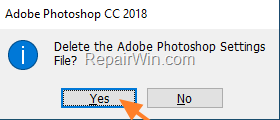
3. When asked to "Delete the Adobe Photoshop Settings file?" click Yes.
Method 2. Reset Preferences from Photoshop's menu.
1. Launch Photoshop.
2. From the Edit menu, select Preferences -> General
3. Click Reset Preferences on Quit.
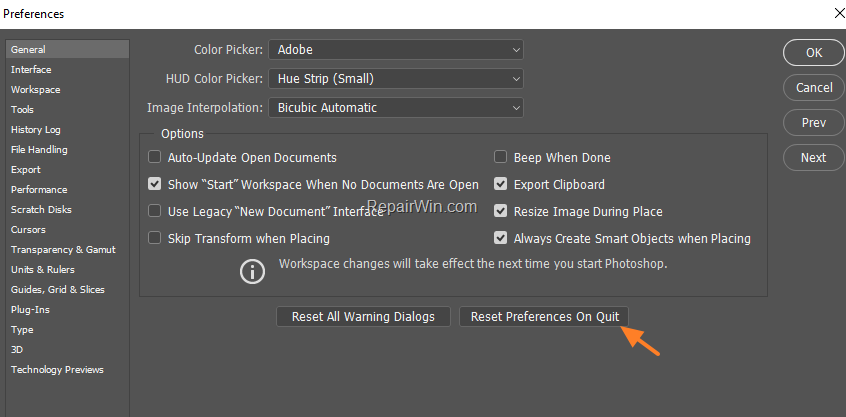
4. Click OK when asked to reset preferences when quitting Photoshop.

5. Click OK again to close the Preferences dialog.
6. Close and re-launch Photoshop.
Method 3. Delete or Rename the Adobe Photoshop Settings file.
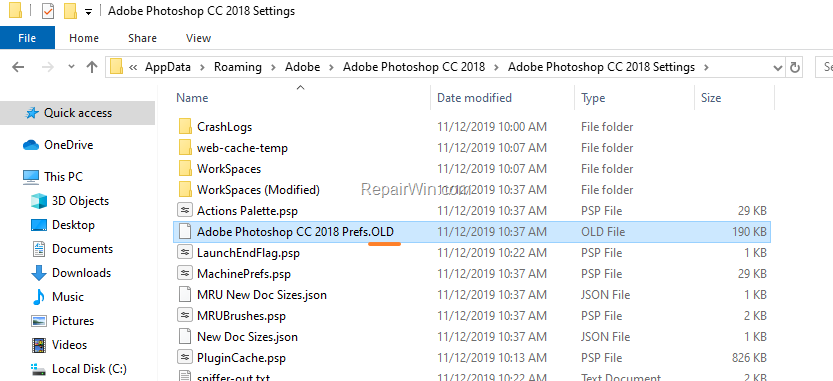
The final method to reset Photoshop preferences to their defaults, is to rename or to delete the Photoshop Settings file (Adobe Photoshop %Version% Prefs.psp), at the following location on your PC:*
- C:\Users\%Username%\AppData\Roaming\Adobe\Adobe Photoshop %Version%\Adobe Photoshop %Version% Settings\Adobe Photoshop %Version% Prefs.psp
* Note: In MAC OS, navigate to:
- Users\%Username%\Library\Preferences\Adobe Photoshop %Version% Settings\Adobe Photoshop %Version% Prefs.psp
To delete the Adobe Preferences in Windows 10, 8, 7 OS:
1. Quit Photoshop.
2. Navigate to the "C:\Users\%Username%\AppData\Roaming\" folder. To do that:
1. Press the Windows
+ R keys to open the run command box.
2. In the Search box, type: %appdata% & click OK.


4. Then navigate to "…\Adobe\Adobe Photoshop %Version%\Adobe Photoshop %Version% Settings\" folder.
5. Delete or rename the "Adobe Photoshop %Version% Prefs.psp" file to Adobe Photoshop %Version% Prefs.OLD" *
* Note: If you own Photoshop 64-bit, rename or delete also the "Adobe Photoshop X64 %version% Prefs.psp" file.
6. Launch Photoshop.
That's all folks! Did it work for you?
Please leave a comment in the comment section below or even better: like and share this blog post in the social networks to help spread the word about this solution.
Frequently Asked Questions
Why is my Photoshop program acting weird?
Your Photoshop program might be acting strange due to a corrupted Preferences file, which stores all customizations. The best way to fix this is to reset the preferences to their default settings.
How do I reset Photoshop preferences using a keyboard shortcut?
To reset Photoshop preferences with a keyboard shortcut, quit Photoshop first. Then, start it while immediately holding down Ctrl+Alt+Shift (Windows) or Command+Option+Shift (Mac OS). When prompted, click Yes to delete the Adobe Photoshop Settings file.
Can I reset a specific tool in Photoshop without affecting others?
Yes, to reset a specific tool, click on Windows from the menu, select Options, and then choose the tool from the Toolbox. Right-click on the tool at the left of the Options bar and select Reset Tool or Reset All Tools.
How can I delete the Photoshop Preferences file manually?
To manually delete the Photoshop Preferences file, quit Photoshop and navigate to C:\Users\%Username%\AppData\Roaming\Adobe\Adobe Photoshop %Version%\Adobe Photoshop %Version% Settings\. Delete or rename the 'Adobe Photoshop %Version% Prefs.psp' file to fix issues. If you use the 64-bit version, ensure to rename or delete the corresponding 64-bit preferences file as well.




January 26, 2022 @ 3:44 am
Thank you, Method one worked while all others failed.
Saved me
May 2, 2022 @ 9:20 pm
Spent–no exaggeration–two months trying to figure this out and your answer was the only one that worked. Thank you!!!
September 29, 2022 @ 7:00 am
This answer is outstanding. Thank you very much. I appreciate the different ways to the same path. I had been researching this for some time, without success. Your solution worked. Again, Thank You!!! Randy