
FIX: File has no audio or video streams on Adobe Premiere.
If you receive the Adobe Premiere error 'File Import Failure' with description "The file has no audio or video steams" may appear while importing a MP4 video file, then continue reading below. The error "The file has no audio or video steams" in Adobe Premiere, may appear although the video plays correctly in any other media players (VLC, Windows Media Player etc.).
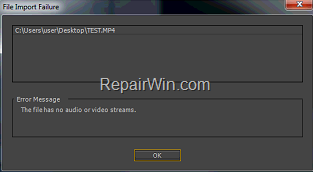
The Adobe Premiere errors, while importing a video file may appear for several reasons, so in this tutorial you will find all the available methods to fix the problem.
How to fix: "The file has no audio or video steams" in Adobe Premiere.
Method 1. Install QuickTime.
First of all, make sure that you have installed the latest Quick Time version on your PC and then try to import the mp4 file in Adobe Premiere.
Method 2. Rename the Video file.
1. Create a copy of the mp4 video file on another location on your PC. (e.g. on your Desktop)
2. Rename the video file as follows:
a. Give a shorter filename on the video file, and…
b. Remove any special characters from its name. (underscores, parentheses, etc.).
3. Open the video file in Adobe Premiere.
Method 3. Change the Filename Extension from MP4 to MOV.
The next method to bypass the Adobe Premiere's error "File has no audio or video streams", is to change the extension of the video file, from .mp4 to .mov (or vise versa). To do that:
1. In File Explorer, click View -> Options -> Change folder and search options.

2. At View tab, clear the "Hide extensions for known file types" box and click OK. *
* Note: To make this setting permanent, click 'Apply to folders', before clicking OK.

3. Now, proceed and rename/change the extension of the video file, as follows:
- If the video file is in MP4 format (.mp4), change it's extension to .mov
- If the video file is in MOV format (.mov), change it's extension to .mp4

4. Finally, open the video file in Adobe Premiere.
Method 4. Clear the Media Cache Database and Cache Files.
When you import a media file (Video or Audio), and while working with this file in Adobe Premiere, the program creates the media cache files for faster performance. In addition, the program creates links for these cache files in Media Cache Database. During the time, these media cache files and the Media Cache database may become too large or corrupted and need to be cleaned to avoid problems.
So, the next method to resolve the "File has no audio or video streams" in Premiere, is to clean the "Media Cache Database" and to delete the cache files. To do that: *
A. How to Clean the Media Cache Database of Adobe Premiere.
1. Open Adobe Premiere.
2. From the menu go to Edit -> Preferences -> Media.
3. At Media Cache Database click the Clean button.

4. Restart Adobe Premiere and try to open the video file. if the error "File has no audio or video streams" persists, then proceed to clean the Adobe Premiere's cache files by following the instructions below:
B. How to Clear the Media Cache Files of Adobe Premiere.
1. Open Adobe Premiere.
2. From the menu go to Edit -> Preferences -> Media.
3. At Media Cache Files click the Browse button, or note the location of the media cache files.

4. Close Adobe Premiere.
5. In File Explorer, delete all the contents of the "Media Cache files" folder.
6. Import the video file in Premiere.
Method 5. Re-encode the Video File.
The final method to resolve the "File has no audio or video streams" in Adobe Premiere importing process, is to re-encode the video file. To do that:
1. Download and install Handbrake.
2. Open Handbrake and click File – Open a single video file.
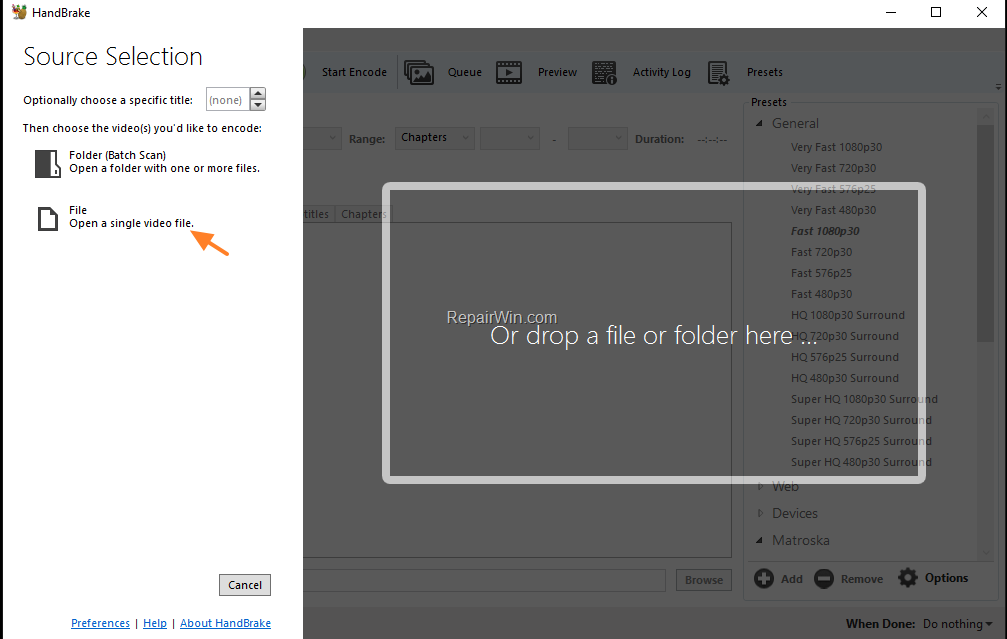
3. Select the video file that you cannot import in Adobe Premiere and click Open.
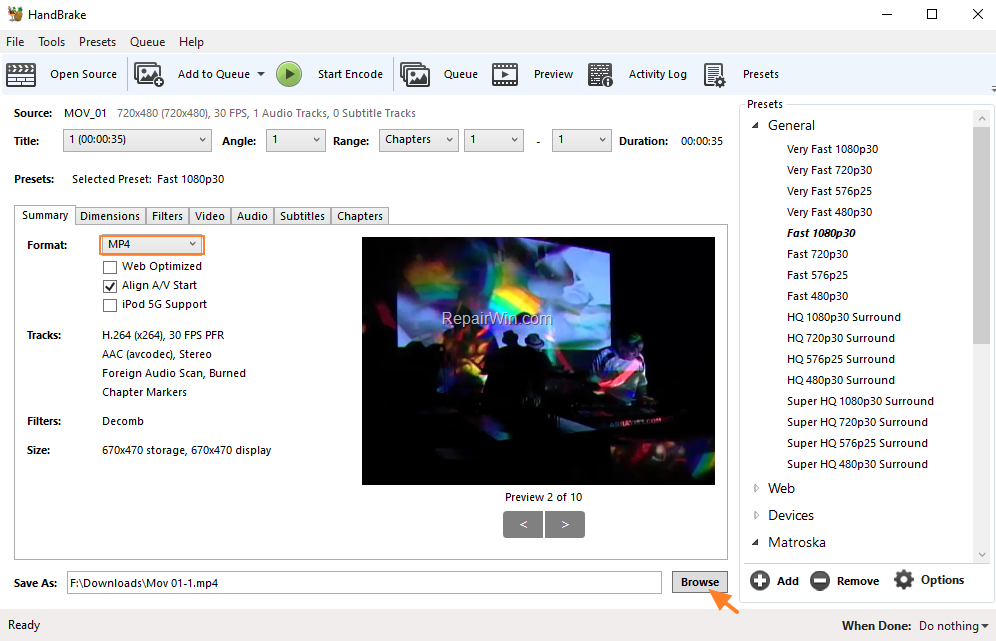
4. Set the output format to MP4, and then click Browse and specify the store location and the filename of the output (re-encoded) video file.
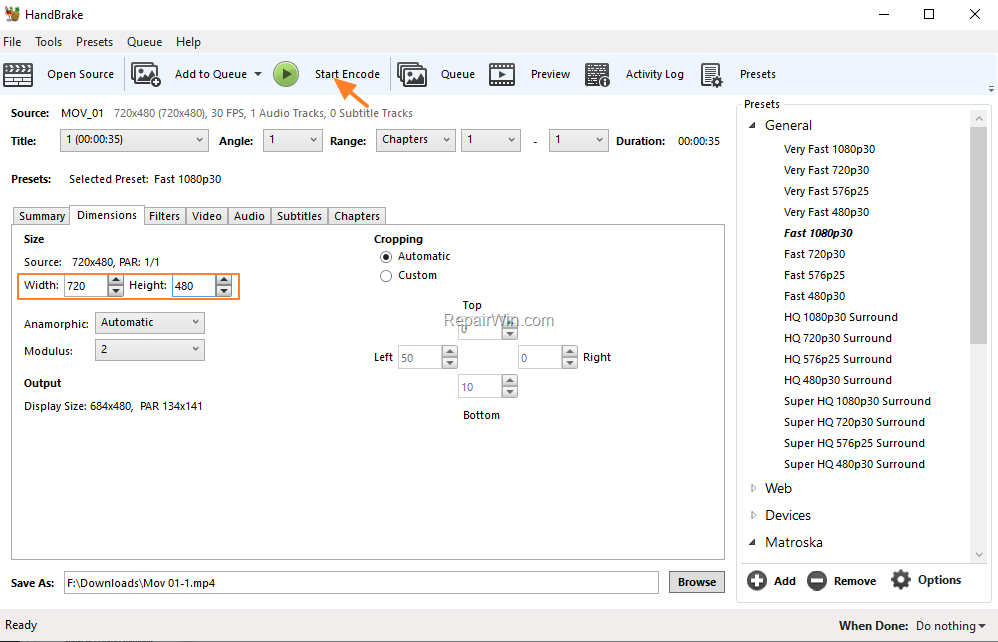
5. At Dimensions tab, set the same dimensions as the source file.
6. When done, click Start Encode.
8. When the encoding process is completed, close Handbrake.
7. Open the re-encoded video file in Adobe Premiere.
That's all folks! Did it work for you?
Please leave a comment in the comment section below or even better: like and share this blog post in the social networks to help spread the word about this solution.
Frequently Asked Questions
What causes the 'File Import Failure' error in Adobe Premiere when importing an MP4 video?
The 'File Import Failure' error with the description 'The file has no audio or video streams' can occur due to several issues, such as missing software like QuickTime, problems with file naming, incorrect file extensions, or corrupted media cache files.
How can I fix the 'The file has no audio or video streams' error in Adobe Premiere?
To fix this error, you can try several methods: ensure QuickTime is installed, rename the video file to have a shorter name without special characters, change the file extension from .mp4 to .mov or vice versa, clear Adobe Premiere's media cache database and cache files, or re-encode the video file using Handbrake.
How do I clean the Media Cache Database in Adobe Premiere?
To clean the Media Cache Database: Open Adobe Premiere, navigate to Edit -> Preferences -> Media, and click the 'Clean' button under Media Cache Database. Then, restart Adobe Premiere and attempt to open the video file again.
What is a potential solution if the filename extension of a video file causes import errors in Adobe Premiere?
A potential solution is to change the filename extension of the video file. If the file is in MP4 format (.mp4), rename it to MOV format (.mov), or vice versa. This can help bypass the error and allow the video to be imported into Adobe Premiere.




December 30, 2020 @ 10:10 pm
I tried all the method one at a time. The fifth method works. Thank you.
January 7, 2022 @ 3:57 am
Wow, I did not know this solution exists whenever I have experienced any bug on Premiere Pro, I usually utilize alternatives like AceThinker Free Online Video Editor. Nevertheless, these solutions are awesome and helpful.
May 25, 2022 @ 7:08 pm
The fifth method with Handbrake is the only one that worked when I tried them all. Thank you so much dude.
August 3, 2022 @ 3:36 am
Thanks! Installing QuickTime worked for me . . .
December 15, 2022 @ 5:23 am
The HandBrake option worked for me. I transcoded to m4v and then re-encoded to mov with AVS. Thank you.
June 29, 2023 @ 9:23 am
hello
thank you for your helping 🙏
the fifth method is working just
1/2/3/4 not working with me
thanks brother