
How to Find Windows Media Player in Windows 10.
For many years now, the Windows Media Player, was the default application for playing music and videos. In Windows 10, the Windows Player, is not anymore, the default player for the media files and has replaced by the "Movies and TV" app.
This article is written for all users that want to find and use the classic Windows Media Player, as the default player for playing their music and videos.
How to Find Windows Media Player in Windows 10.
The fastest way to find out, if the Windows Media Player is installed on your computer, is by searching it. To do that:
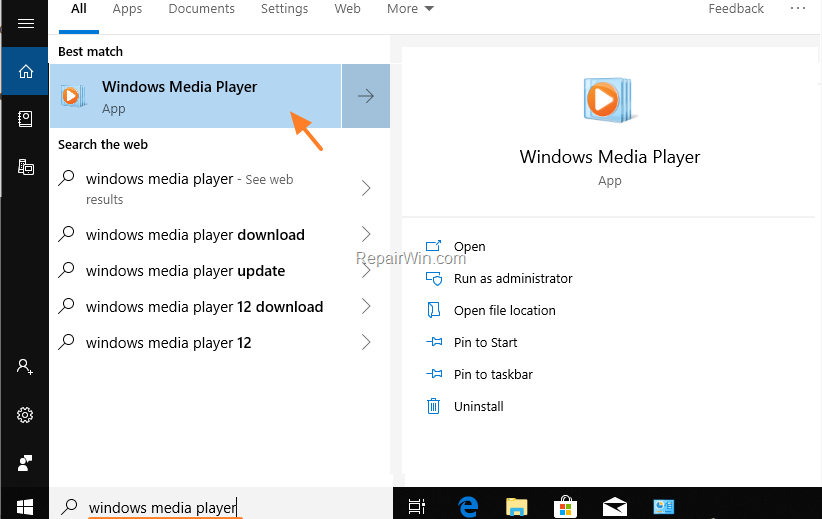
1. At Cortana's search box type Windows Media Player.
2. If the Windows Media player is listed on the results, then click on it to launch the program. (If not listed, then continue below…)
TIP: To set the Windows Media Player, as the default player for your videos and music:
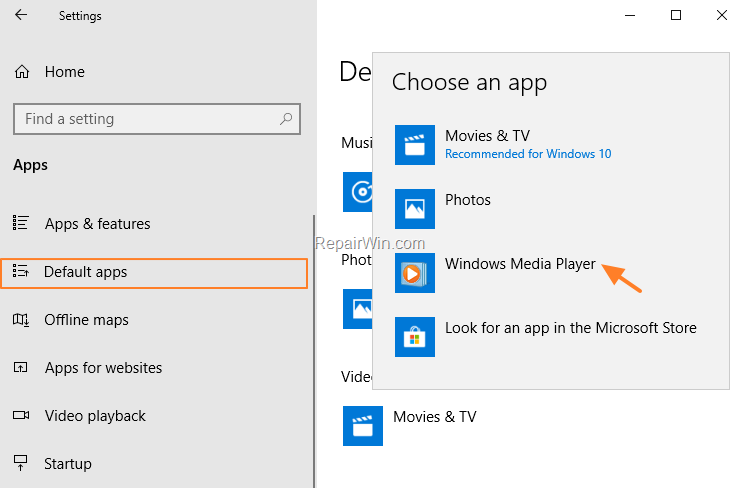
1. Navigate to Start -> Settings -> Apps and select Default Apps at the left.
2. At Music Player options, click the Groove Music and then select the Windows Media player.
3. At Video Player options, click Movies & TV and then select the Windows Media player.
How to Install Windows Media player in Windows 10 Home, Pro.
If the Windows Media Player is not listed, then you can install it, by going to:
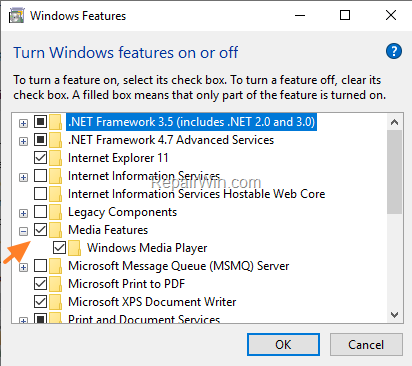
1. Control Panel -> Programs and features.
2. Click Turn Windows features on or off from the left.

3. At Media Features, select the Windows Media Player and press OK. *
* Note: If you 're own Windows 10 N or KN version, or you cannot install the Windows Media Player from the 'Windows features' then continue reading below…
How to Download and Install Windows Media player in Windows 10 Home, Pro, N & KN Versions.
If you cannot install the Windows Player by using the above instructions, or if you own Windows 10 N or KN, then you can download the Windows Media Player for Windows 10, by following the instructions below:
1. Download the Media Feature Pack for N and KN versions of Windows 10.
* Note: Download the Microsoft-Windows-MediaFeaturePack-OOB-Package.msu for 32-bit OS, and the Microsoft-Windows-MediaFeaturePack-OOB-Package_x64.msu for 64-bit OS.
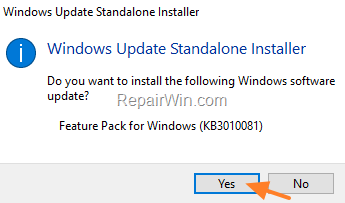
2. Run the downloaded file and click Yes at the first screen.
3. Accept the License Agreement and then wait until the installation is completed.

That’s all folks! Did it work for you? Please leave a comment in the comment section below or even better: like and share this blog post in the social networks to help spread the word about this solution.
Frequently Asked Questions
How can I check if Windows Media Player is installed on my Windows 10 system?
To check if Windows Media Player is installed, type 'Windows Media Player' in Cortana's search box. If it appears in the search results, click on it to launch the program.
How do I set Windows Media Player as the default player for music and videos on Windows 10?
Navigate to Start -> Settings -> Apps and select Default Apps. Under Music Player, click Groove Music and select Windows Media Player. Similarly, under Video Player, click Movies & TV and select Windows Media Player.
What steps should I follow to install Windows Media Player on Windows 10 Home or Pro if it is not installed?
Go to Control Panel -> Programs and features. Click on 'Turn Windows features on or off' from the left pane. Under Media Features, select Windows Media Player and press OK.
How can I install Windows Media Player on Windows 10 N or KN versions?
Download the Media Feature Pack for N and KN versions of Windows 10. Choose the appropriate file for your OS type: Microsoft-Windows-MediaFeaturePack-OOB-Package.msu for 32-bit, or Microsoft-Windows-MediaFeaturePack-OOB-Package_x64.msu for 64-bit. Run the downloaded file and follow the installation instructions.



