
FIX: NVidia GeForce Experience Something went wrong. (Solved)
This tutorial contains instructions to fix the following error: " NVIDIA GeForce Experience: Something went wrong. Try restarting GeForce Experience." So, If the NVidia GeForce Experience application is not working on your computer, follow the methods below to resolve your problems.
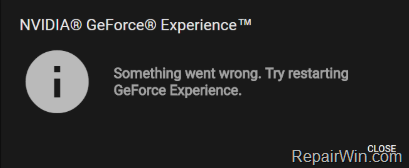
How to FIX: NVidia GeForce Experience Not Working problem.
Suggestion: Before you continue to apply the methods below, make sure that you have all the available Windows Updates installed.
Method 1. Modify NVidia Telemetry Container & Display Container Service Properties
1. Press the Windows  + R keys to open the run command box.
2. In the Search box, type: services.msc & click OK.

2. In Services control panel, right click at Nvidia Telemetry Container service and click Properties.
3. At General tab, make sure that the 'Startup type' is set to Automatic or Manual and not Disabled.
4. At the Log On tab, click Local System account and then click OK.

5. Then right click on NVidia Display Container.
6. Set the 'Startup Type' to Automatic and click OK.
7. Restart your computer and try to open GeForce Experience now.
Method 2. Uninstall and Reinstall GeForce Experience.
1. Navigate to Windows Control Panel and open Programs and Features.
2. Select the NVidia GeForce Experience from the list and click Uninstall.
3. Restart your computer.
4. After restart download and install GeForce Experience.
Method 3. Uninstall and Reinstall all NVidia Software (Clean Installation)
1. Navigate to Windows Control Panel and open Programs and Features.
2. Uninstall all NVidia program from your system (Important).
3. Restart your computer.
4. Download and install the latest drivers for your video card from NVIDIA advanced driver search page.
5. At Installation Options, click Custom (Advanced) and click Next.

6. At the next screen, check the Perform a clean installation checkbox and click Next.
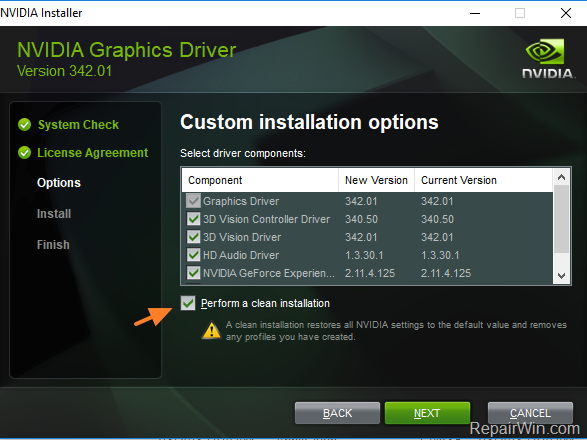
7. When the installation is completed, restart your computer.
That’s all folks! Did it work for you?
Please leave a comment in the comment section below or even better: like and share this blog post in the social networks to help spread the word about this solution.
Frequently Asked Questions
What should I do before applying the methods to fix GeForce Experience issues?
Before proceeding with the suggested methods, ensure you have installed all available Windows Updates.
How can I modify the NVidia Telemetry Container service settings?
Open the run command box by pressing Windows + R, type 'services.msc', and click OK. In the Services control panel, right-click on Nvidia Telemetry Container service, access Properties, and set the 'Startup type' to Automatic or Manual under the General tab. In the Log On tab, select Local System account and click OK.
What steps are involved in Method 2 for fixing GeForce Experience?
In Method 2, go to Windows Control Panel, open Programs and Features, and uninstall NVidia GeForce Experience. Restart your computer, then download and reinstall GeForce Experience.
How do I perform a clean installation of NVidia software as described in Method 3?
To perform a clean installation, uninstall all NVidia programs via Windows Control Panel > Programs and Features. Restart your computer, download the latest drivers from NVIDIA's advanced driver search page, select Custom (Advanced) at Installation Options, check the Perform a clean installation checkbox, and proceed with the installation. Restart your computer once completed.




December 15, 2018 @ 1:48 am
Finally. UR post fixed it
What a relief. Thanks ever so much. MAY Christmas 4 u, family and friends, may everyone, in these troubled times, in this troubled world we share, remember all the less fortunate children, may all be blessed with all things good, ALL things beautiful. Merry Christmas to all.