
FIX: Program Can't Start because MSVCP100.dll or MSVCR100.dll is Missing (Solved)
The following error may be faced at Windows startup or when trying to launch a program: "The program can't start because MSVCP100.dll is missing from your computer.Try reinstalling the program to fix this problem.".
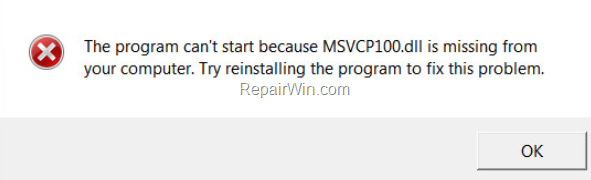
The "MSVCP100.dll is missing" or the "MSVCR100.dll is missing" issues commonly occurs, after updating your system to the latest Windows version (e.g. after migrating your system from Windows 8.1 to Windows 10) or after restoring your system to a previous restore point by using the Windows "System Restore" feature.
In this tutorial you'll find instructions to resolve the "msvcr100.dll is missing" or the "msvcp100.dll is missing" errors in Windows 10, 8/8.1 or 7 OS.
How to FIX: "Program Can't Start because MSVCP100.DLL or MSVCR100.DLL is Missing".
Method 1. Uninstall and Reinstall Adobe Acrobat Reader DC.
The first method to resolve the "MSVCP100.dll is Missing" issue, is to remove and then to reinstall the 'Acrobat Reader DC' program on your system.
1. Navigate to Windows Control Panel and open Programs and Features.
2. Select the Adobe Acrobat Reader DC and click Uninstall to remove it.
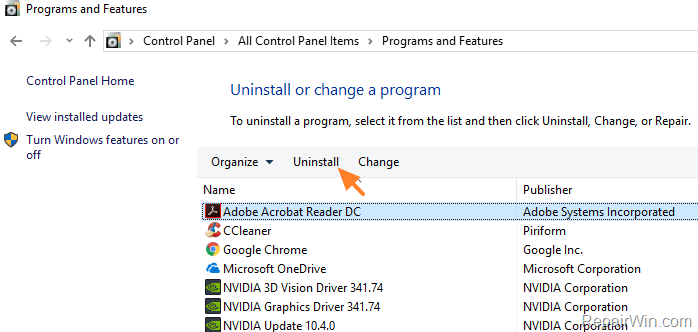
3. Follow the on-screen prompts to remove Acrobat Reader and then restart you computer.
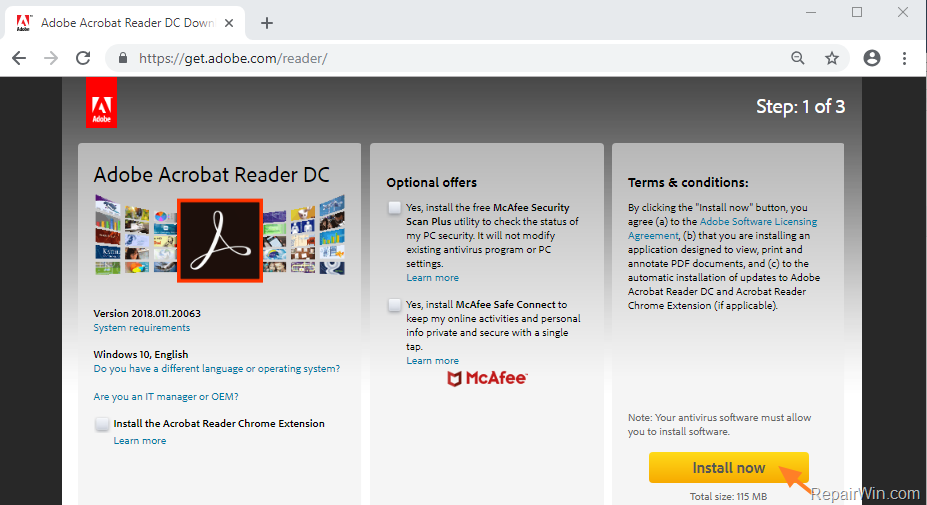
4. After restart, open your Web browser and navigate to Acrobat Reader DC Download page and click the Install now, to download and install the latest version of Acrobat Reader for your system.
Method 2. Repair all versions of Microsoft Visual C++ Redistributable Package.
The second method to fix the "MSVCR100.dll – MSVCp100.dll messing" issues, is to repair all the installed versions* of Microsoft Visual C++ Redistributable Package. **
1. Navigate to Windows Control Panel and open Programs and Features.
2. Find and repair one by one* all the installed versions of "Microsoft Visual C++ Redistributable Package(s)".
* e.g. Select the "Microsoft Visual C++ 2013 Redistributable Package (x86)", click Change and then click on Repair button. When the repair process is completed, highlight the "Microsoft Visual C++ 2013 Redistributable Package (x64)" and perform the same steps (Change > Repair).
** Note: If you cannot find (any version of) the "Microsoft Visual C++ Redistributable Package" on the installed programs, then proceed to method-3 below to install it.
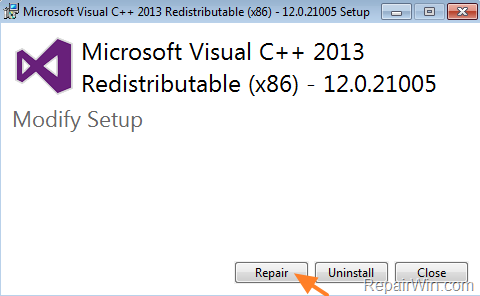
3. When the repair is completed, restart your computer.
Method 3. Uninstall and reinstall the latest Microsoft Visual C++ Redistributable Package.
The next method to solve the "Program Can't Start because MSVCP100.dll is Missing" problem, is to remove all the installed versions of Microsoft Visual C++ Redistributable Package and then to download and install the latest version.
1. Navigate to Windows Control Panel and open Programs and Features.
2. Find and remove (one by one) all the installed versions of "Microsoft Visual C++ Redistributable Package(s)".

3. After uninstall, restart your computer.
4. After restart, open your Web browser and navigate to Visual C++ Redistributable for Visual Studio 2015 Download Page to download and install the latest version of the Microsoft Visual C++ Redistributable Package. *
* Important Note: Download and install both versions. ("vc_redist.x86.exe" & "vc_redist.x64.exe")
Method 4. Copy missing files to the correct location.
In some cases, the "MSVCR100.dll is Missing" and the "MSVCP100.dll is missing" issues, typically appear after Windows upgrade (e.g. from Windows 8.1 to Windows 10). At these cases, perform the following steps to resolve your problems:
1. Copy the files "msvcp100.dll" & "msvcr100.dll" from "C:\Windows.old\WINDOWS\SysWOW64" folder to "C:\Windows\SysWOW64" folder.
2. Restart your computer.
That’s all folks! Did it work for you?
Please leave a comment in the comment section below or even better: like and share this blog post in the social networks to help spread the word about this solution.
Frequently Asked Questions
What causes the 'MSVCP100.dll is missing' error?
The 'MSVCP100.dll is missing' error often occurs after updating your system to a new Windows version or after using the Windows 'System Restore' feature, returning to a previous restore point.
How can I fix the 'MSVCP100.dll is missing' error by using Adobe Acrobat Reader DC?
To resolve the error, uninstall Adobe Acrobat Reader DC via the Windows Control Panel's 'Programs and Features,' restart your computer, and then download and reinstall the latest version from the Acrobat Reader DC download page.
What should I do if I cannot find any version of Microsoft Visual C++ Redistributable Package installed?
If no version of the Microsoft Visual C++ Redistributable Package is installed on your system, proceed to uninstall any existing packages and then download and install the latest versions from the Visual C++ Redistributable for Visual Studio 2015 download page, ensuring you install both 'vc_redist.x86.exe' and 'vc_redist.x64.exe'.
How do I manually fix the missing .dll files after a Windows upgrade?
Copy 'msvcp100.dll' and 'msvcr100.dll' from the 'C:\Windows.old\WINDOWS\SysWOW64' folder to the 'C:\Windows\SysWOW64' folder and restart your computer to solve issues that occur after a Windows upgrade.



